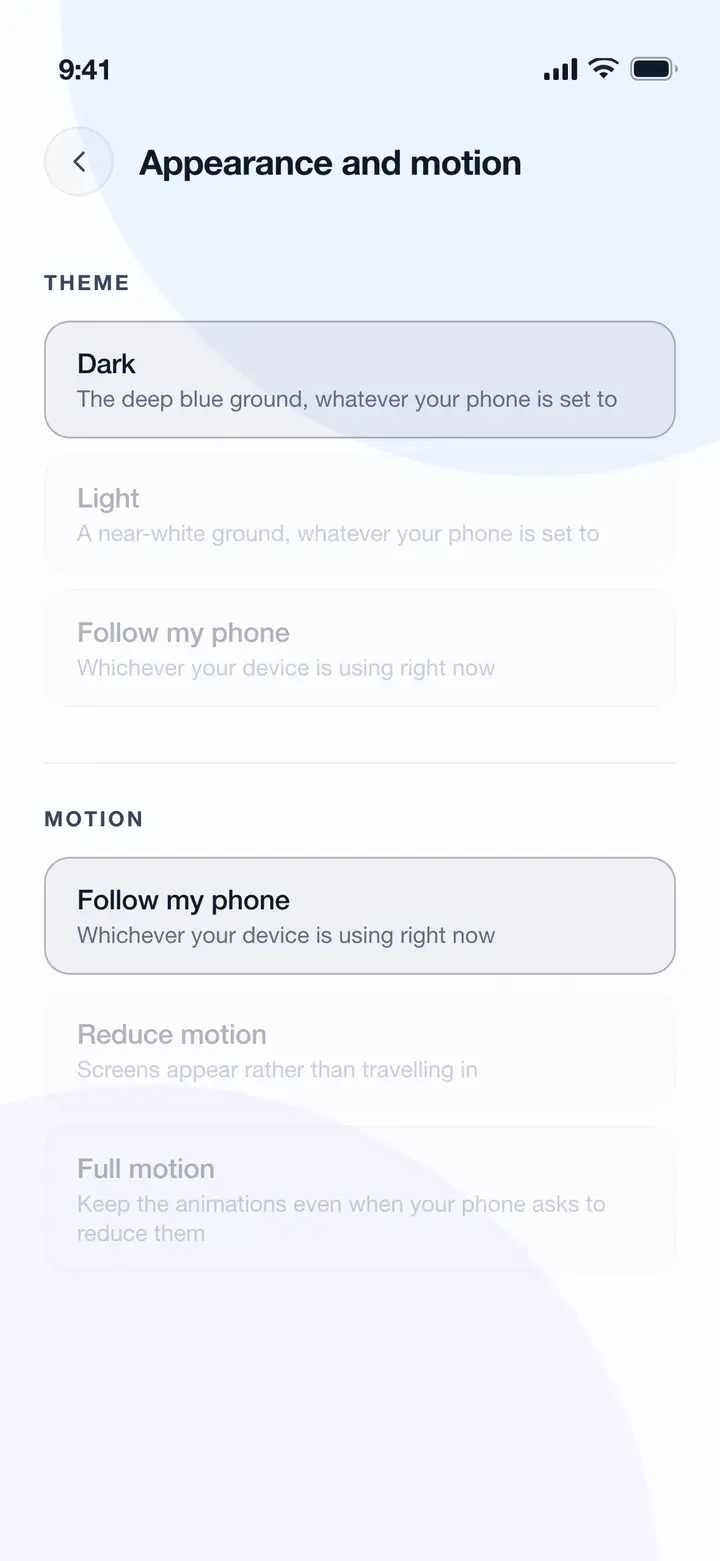
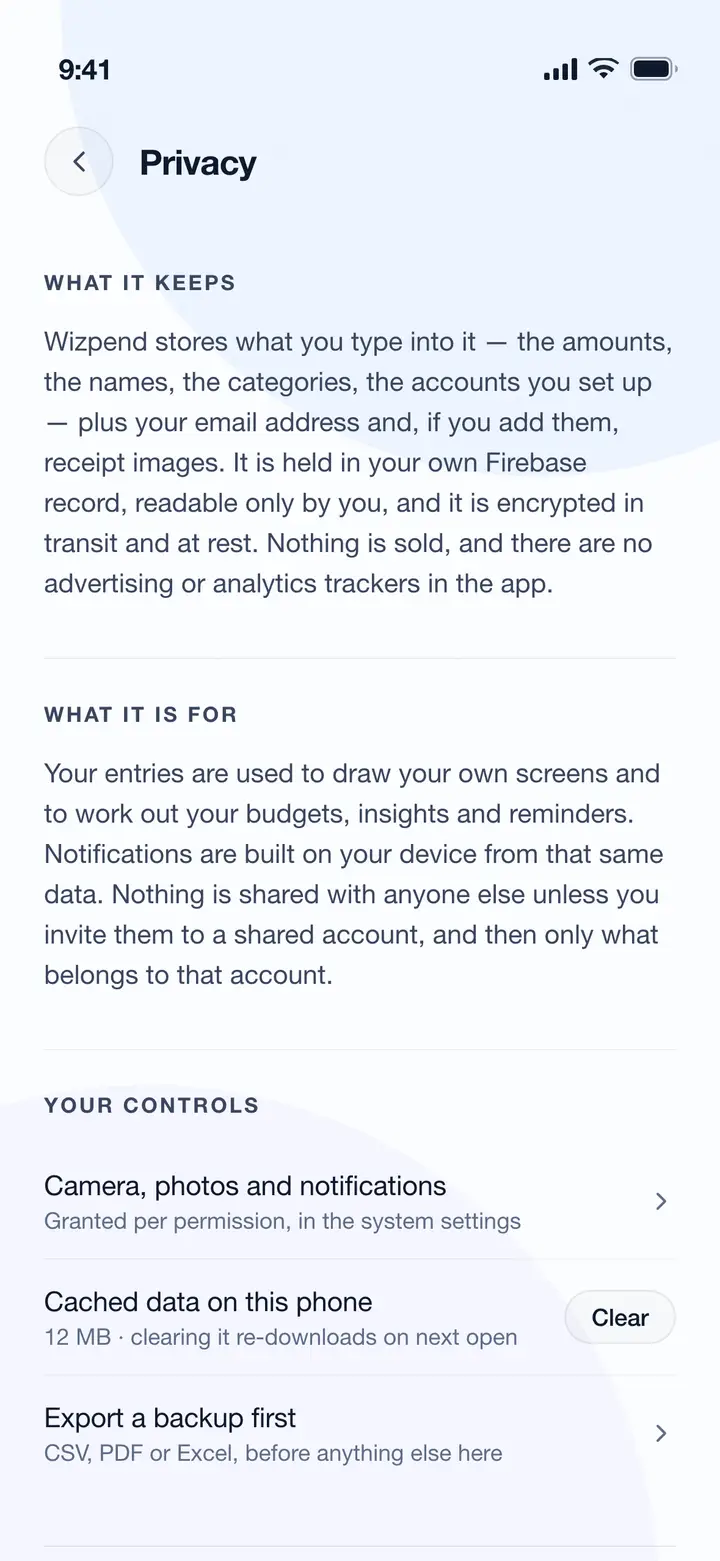
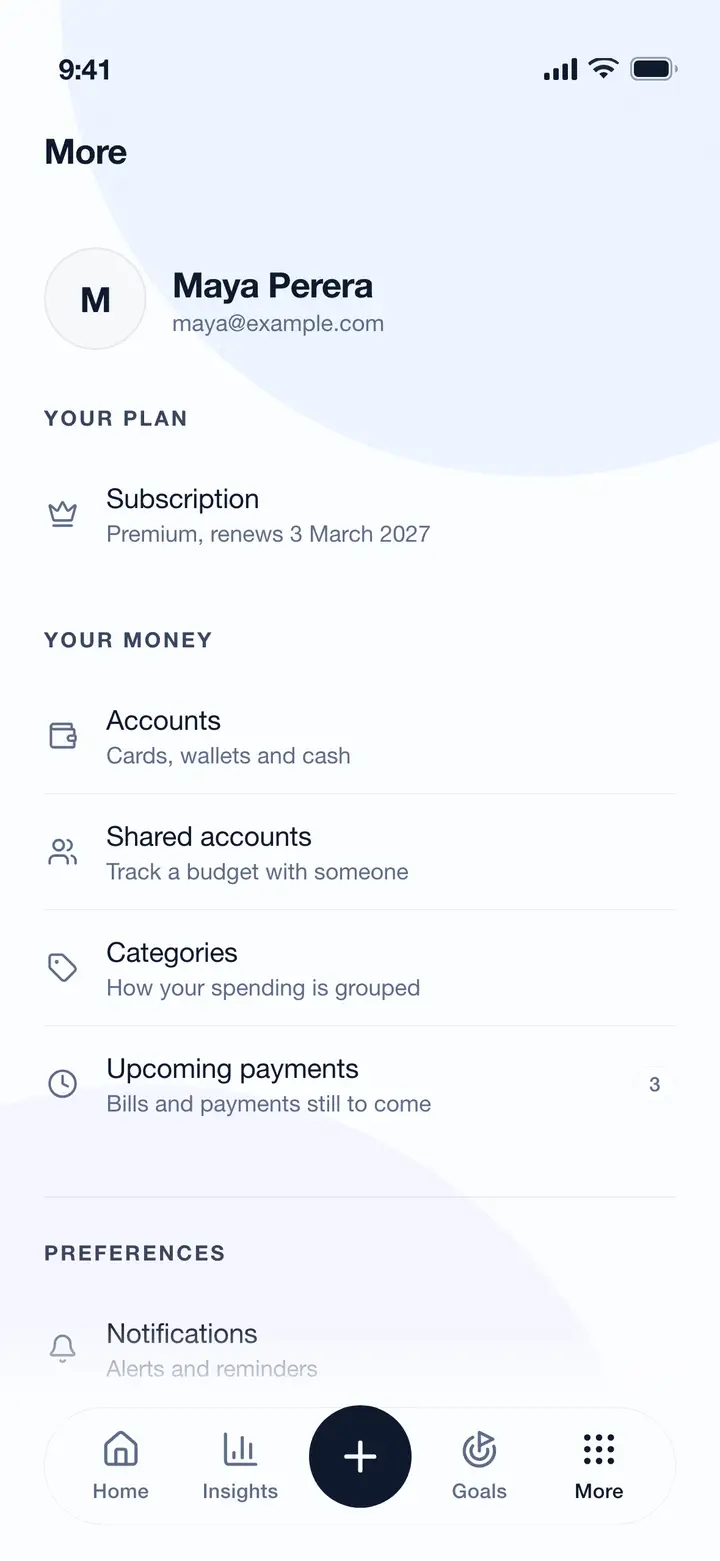
The same guide the app carries, in one page. Pick a topic on the left and it opens on the right, with a picture of the screen it is talking about. Start at the top if you are new — the first three get you set up.
19 guides · Also in the app under More → Help centre
Start here
Getting started
Welcome to Wizpend. Follow these steps to set up your financial tracking.
Step by step
1Create your account and log in
2Add your bank accounts and cash wallets
3Set up your expense categories
4Create monthly budgets for each category
5Record your first transaction
6Set up daily reminders for consistent tracking
7Explore the Insights tab to visualize your spending patterns
Worth knowing
Start by recording transactions for at least 7 days to see meaningful patterns
Add all your accounts (banks, cash, digital wallets) for complete visibility
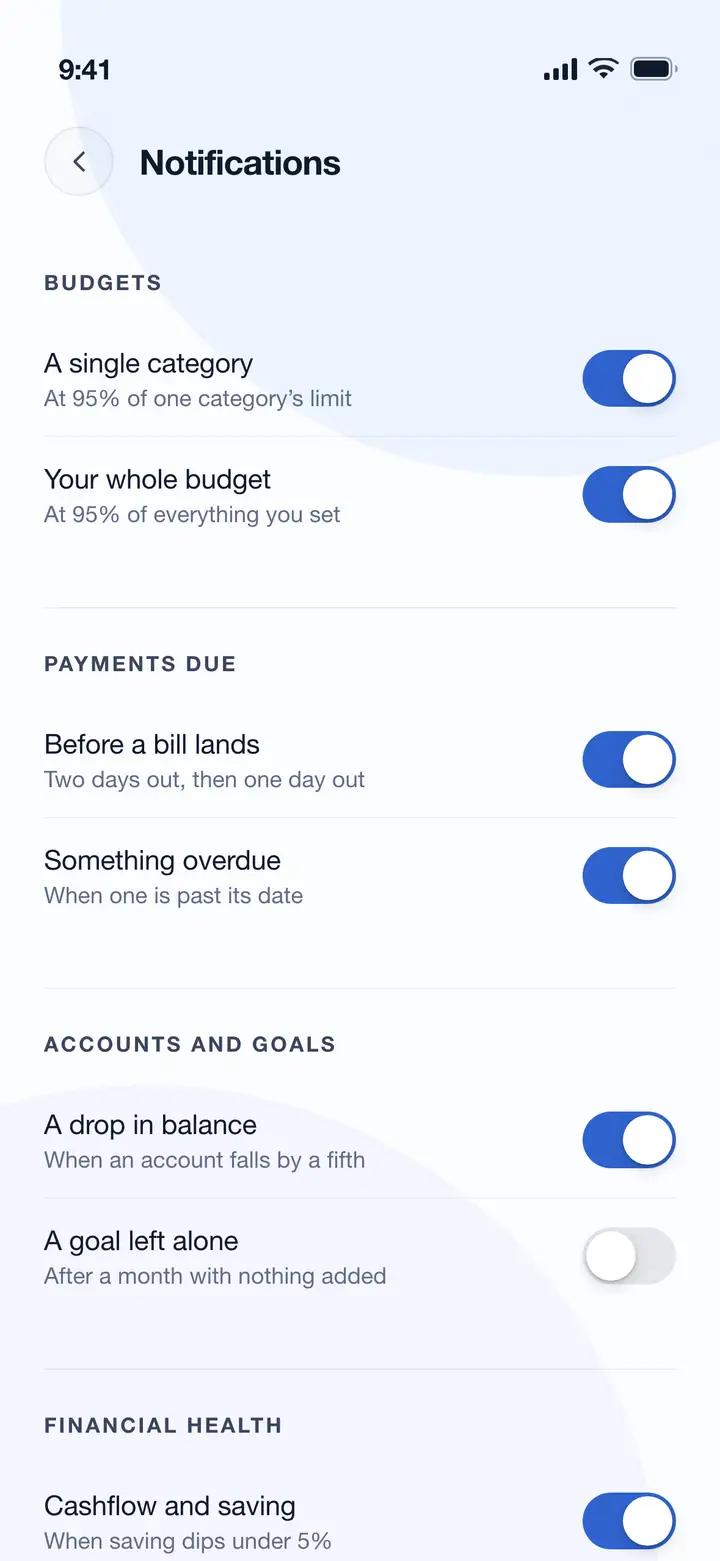
Enable notifications to stay on top of your finances
Tap the Wizard avatar on the dashboard for quick actions
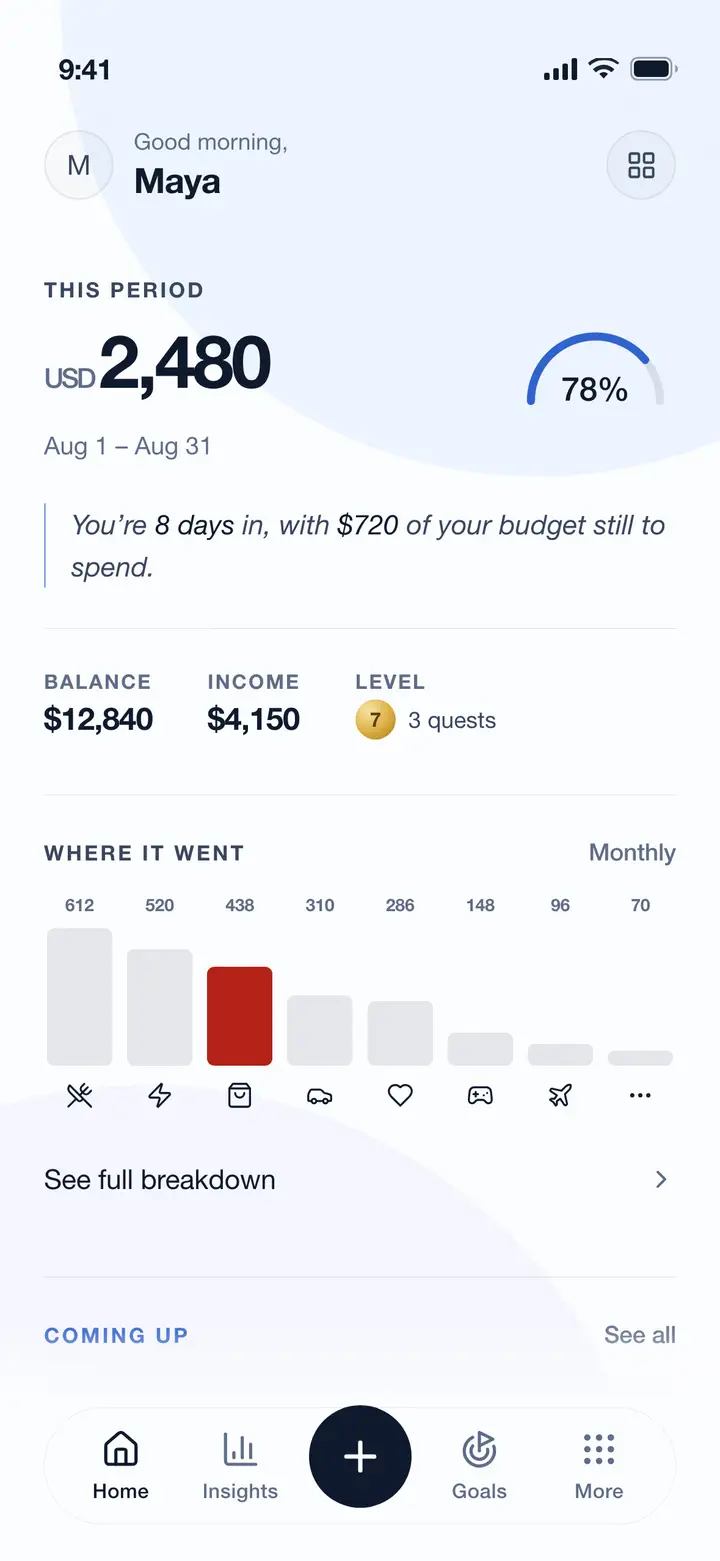
The home dashboard
Start here
Better statistics
To get accurate insights and meaningful statistics, there are a few things to keep up.
What it takes
Record transactions daily for at least 2 weeks
Add all your accounts (minimum 1 account required)
Categorize every transaction correctly
Set up budgets for your main spending categories
Include both income and expense transactions
Update account balances regularly
Record recurring expenses (rent, subscriptions, bills)
Track at least 20-30 transactions per month
Worth knowing
More data = Better insights! Aim for 30+ days of consistent tracking
The Smart Insights feature learns from your patterns, so consistency is key
Complete data across all categories provides the most accurate financial health score
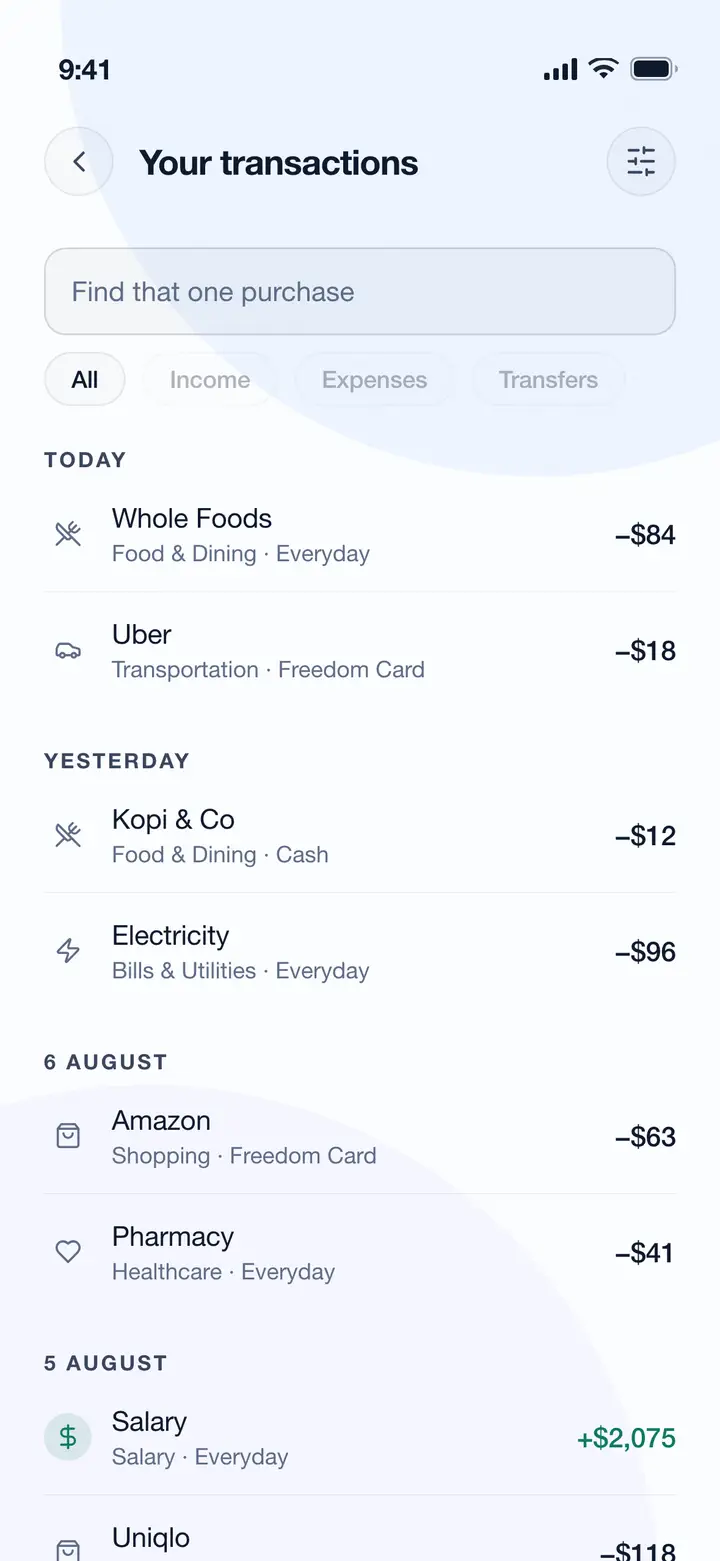
The transactions list
Start here
Tips and best practices
Fourteen habits that keep the tracking going once the setup is done.
The habits
Record transactions immediately - Don't wait until end of day
Review your dashboard every morning for 2 minutes
Follow the 50-30-20 rule: 50% needs, 30% wants, 20% savings
Check insights weekly to identify spending patterns
Enable all notifications for the first month to build habits
Track cash transactions too - they add up quickly
Set aside 10% for emergencies before other goals
Do a monthly financial review (1st of each month)
Cut one unnecessary subscription per month
Budget for irregular expenses (gifts, repairs, etc.)
If budget is exceeded, analyze why and adjust
Celebrate small wins to stay motivated
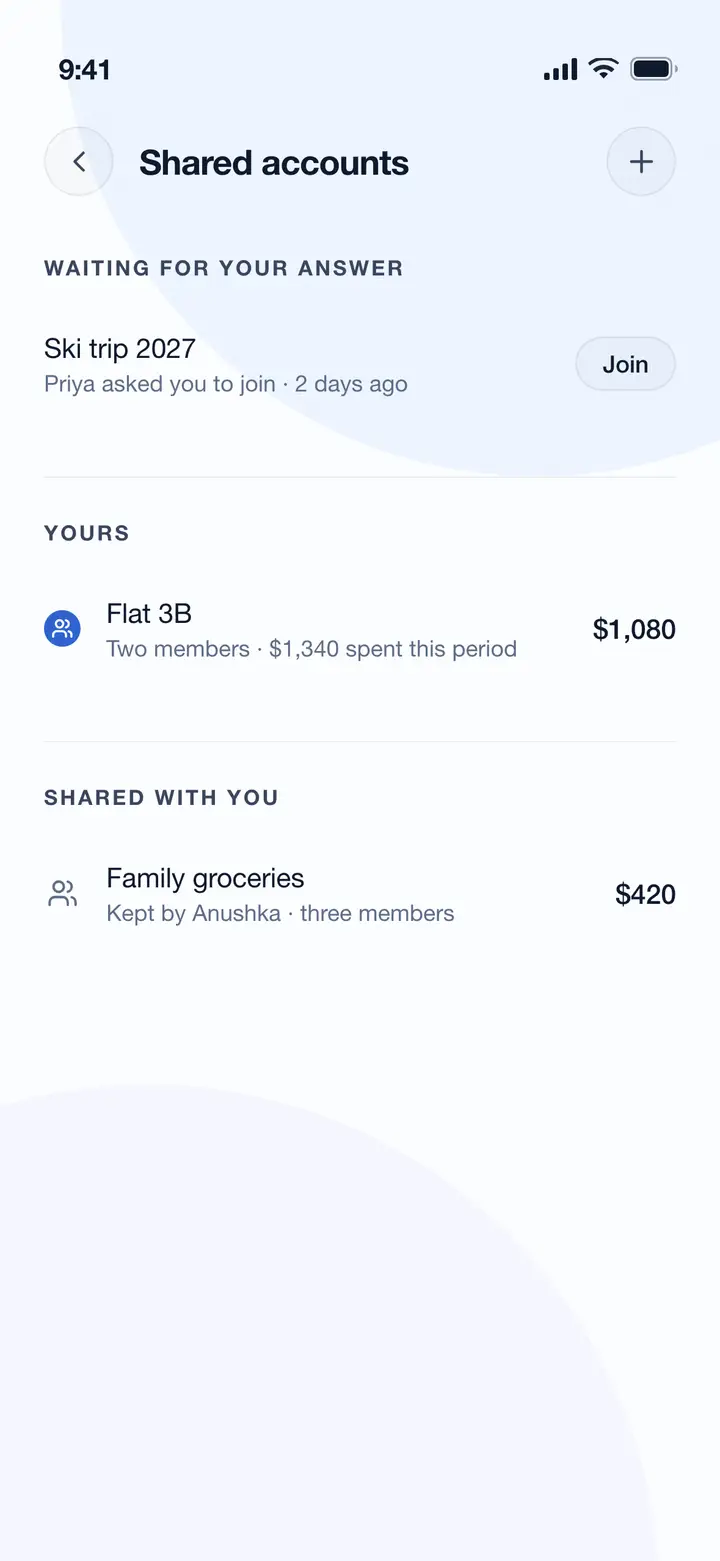
Use Shared Accounts for family budgeting
Set up recurring transactions to save time
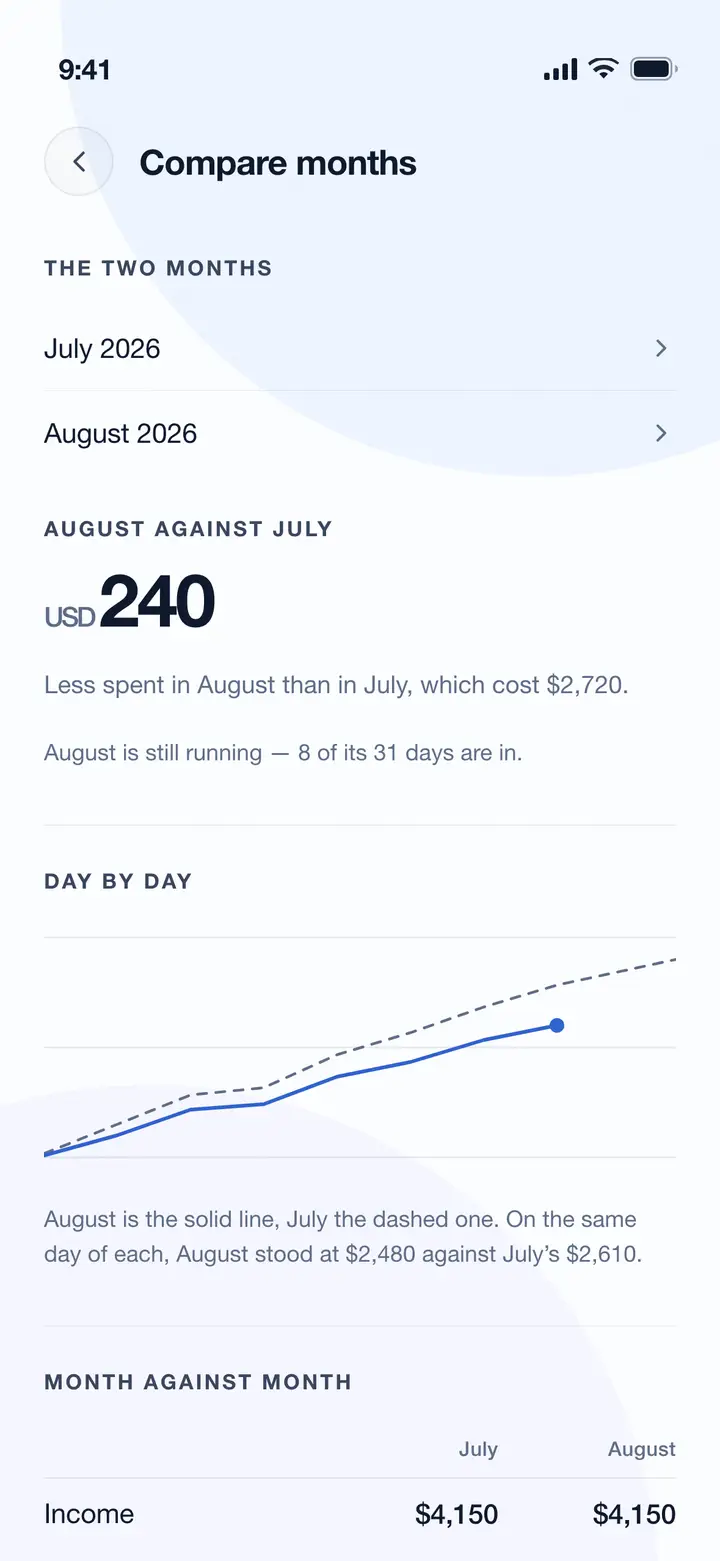
Month comparison
Money in and out
Recording transactions
Keep track of every income and expense.
Step by step
1Tap the "+" button on the home tab
2Choose transaction type (Income or Expense)
3Select the category and enter amount (use the 🧮 calculator icon for quick math)
4Add title, description, and date
5Pick the account to deduct/add from
6Optionally attach a receipt photo using the 📎 paperclip icon
7Link to a savings goal if applicable
8Enable recurring for regular transactions
9Save the transaction
Worth knowing
Record transactions immediately after spending
Use clear descriptions for easy reference
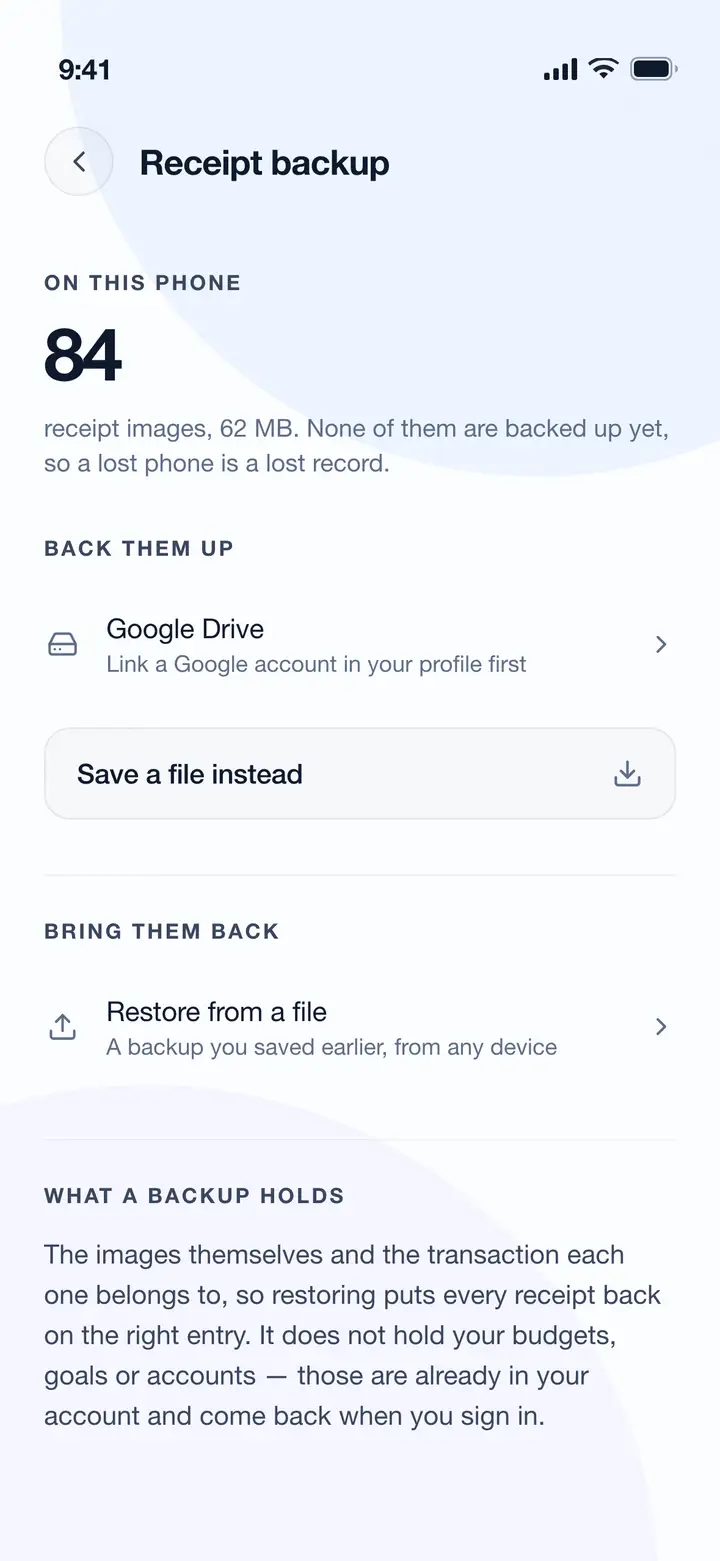
Attach receipt photos to keep records (backed up to Google Drive)
Set up recurring transactions for subscriptions and bills
Swipe left on transactions to edit or delete
Use the search and filter bar in the Transactions screen to find past entries
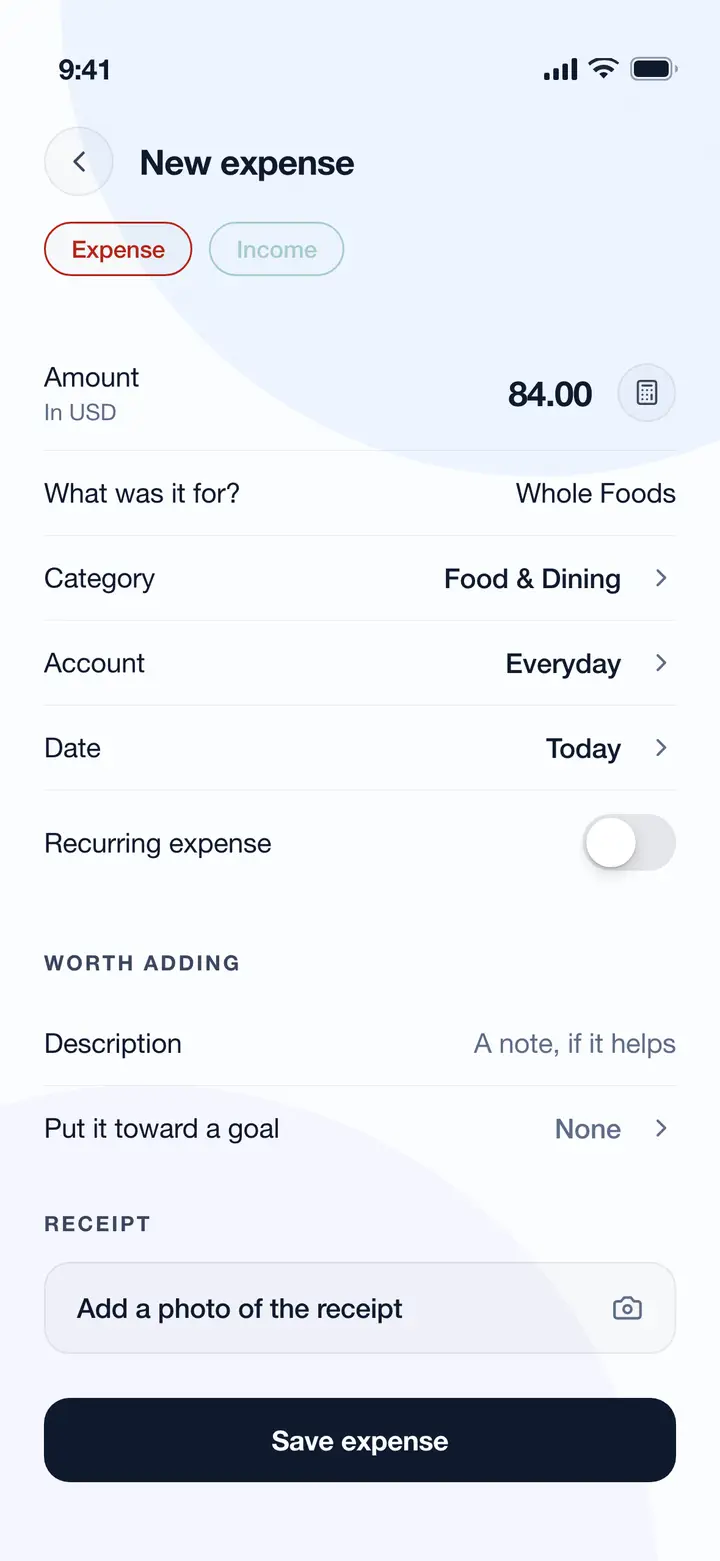
Adding a transaction
Money in and out
Account transfers
Move money between your accounts.
Step by step
1Go to the Add Transaction screen
2Tap the Transfer icon in the top right
3Select source account (From)
4Select destination account (To)
5Enter the transfer amount
6Add an optional note and save
Worth knowing
Transfers don't count as income or expenses
Use transfers when moving money between bank accounts
Transfers are excluded from budget calculations
Both accounts update automatically
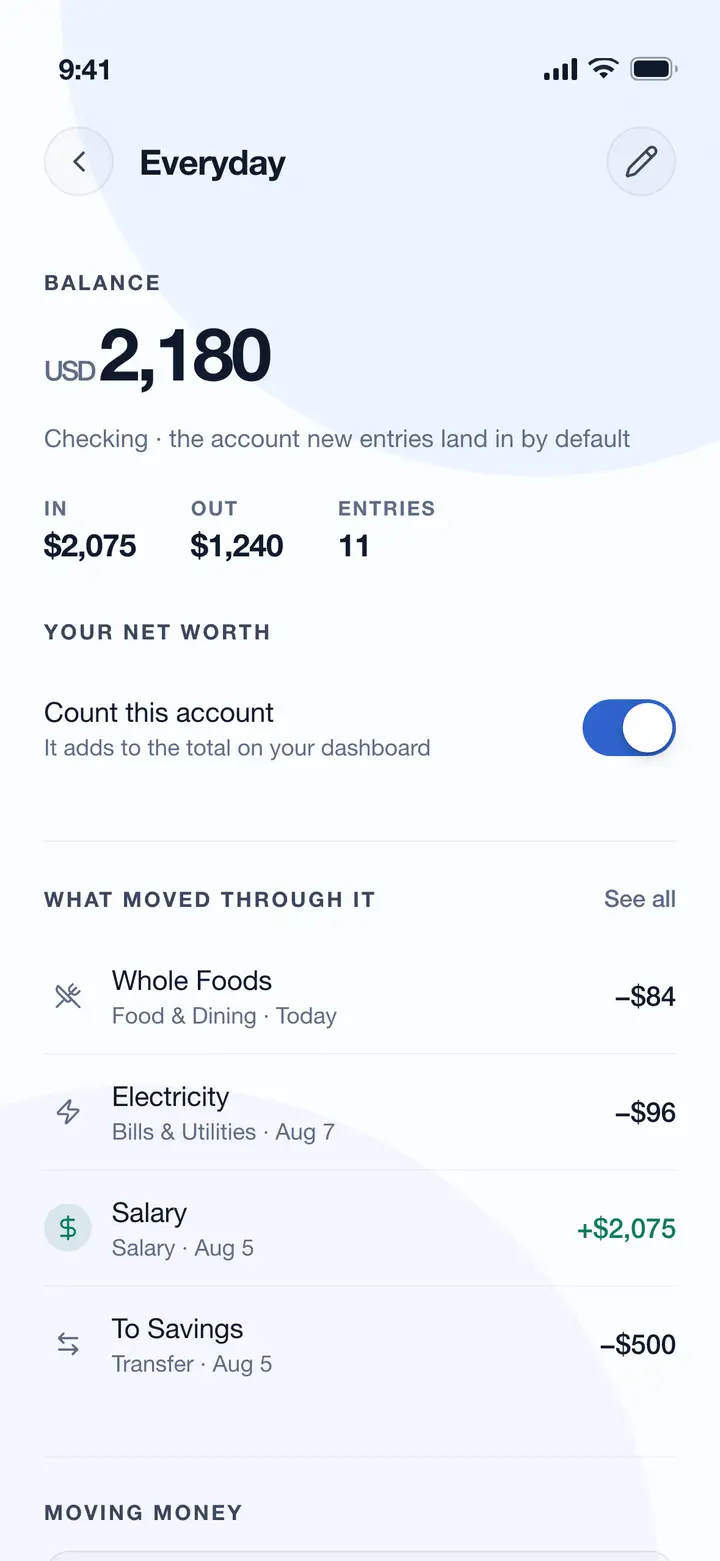
Account details
Money in and out
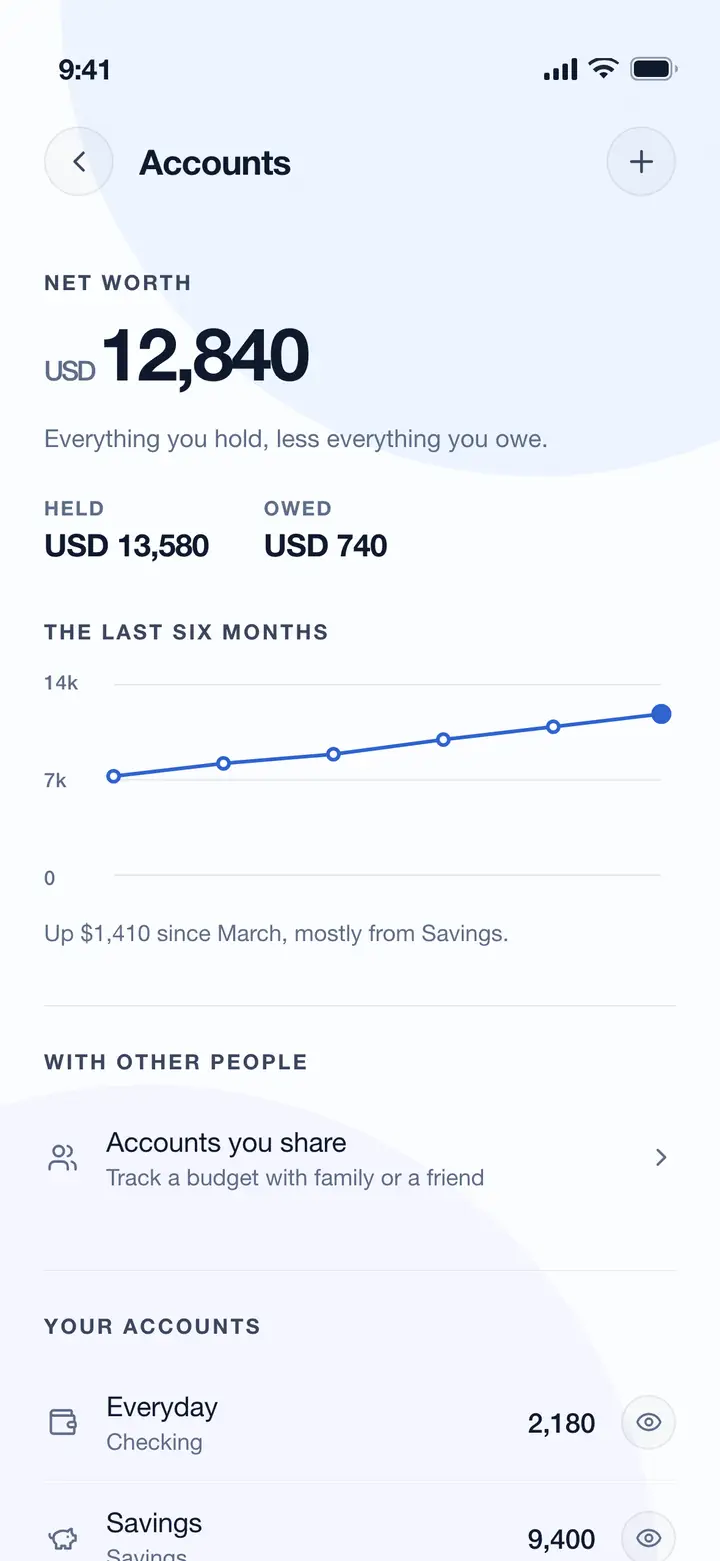
Managing accounts
Track all your financial accounts in one place.
Step by step
1Go to More → Accounts
2Tap "Add Account" button
3Choose account type (Bank, Cash, Credit Card, Digital Wallet, etc.)
4Enter account name, icon, and initial balance
5Save to start tracking
Worth knowing
Add separate accounts for each bank, cash wallet, and credit card
Update balances when you check your statements
Use transfers to move money between accounts accurately
Tap on an account to view its transaction history
Swipe left on an account to edit or delete it
The accounts screen
Money in and out
Categories and budgets
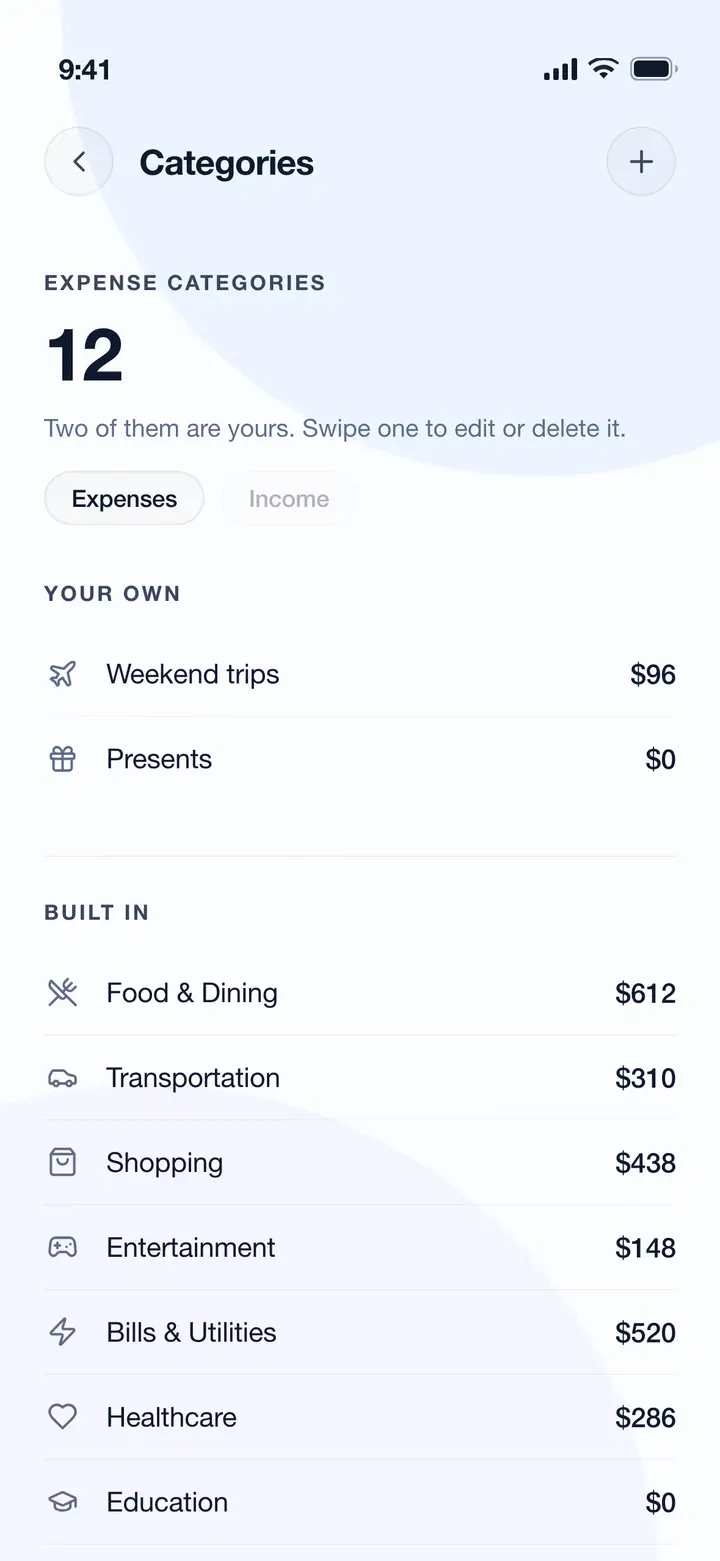
Organize spending and set limits.
Step by step
1Default categories are pre-loaded (Food, Transport, etc.)
2Go to More → Categories to manage your categories
3Add custom categories with icons for your needs
4Go to More → Budgets & Goals to set monthly budgets
5Monitor budget progress on the dashboard and Goals tab
Worth knowing
Keep categories simple and consistent
Budget for essentials first (rent, food, utilities)
Review spending vs budget weekly
Adjust budgets based on actual spending patterns
Enable budget alerts to get notified at 80% and 100%
Budgets automatically reset based on your Budget Period setting
Categories
Plans and progress
Budgets and financial goals
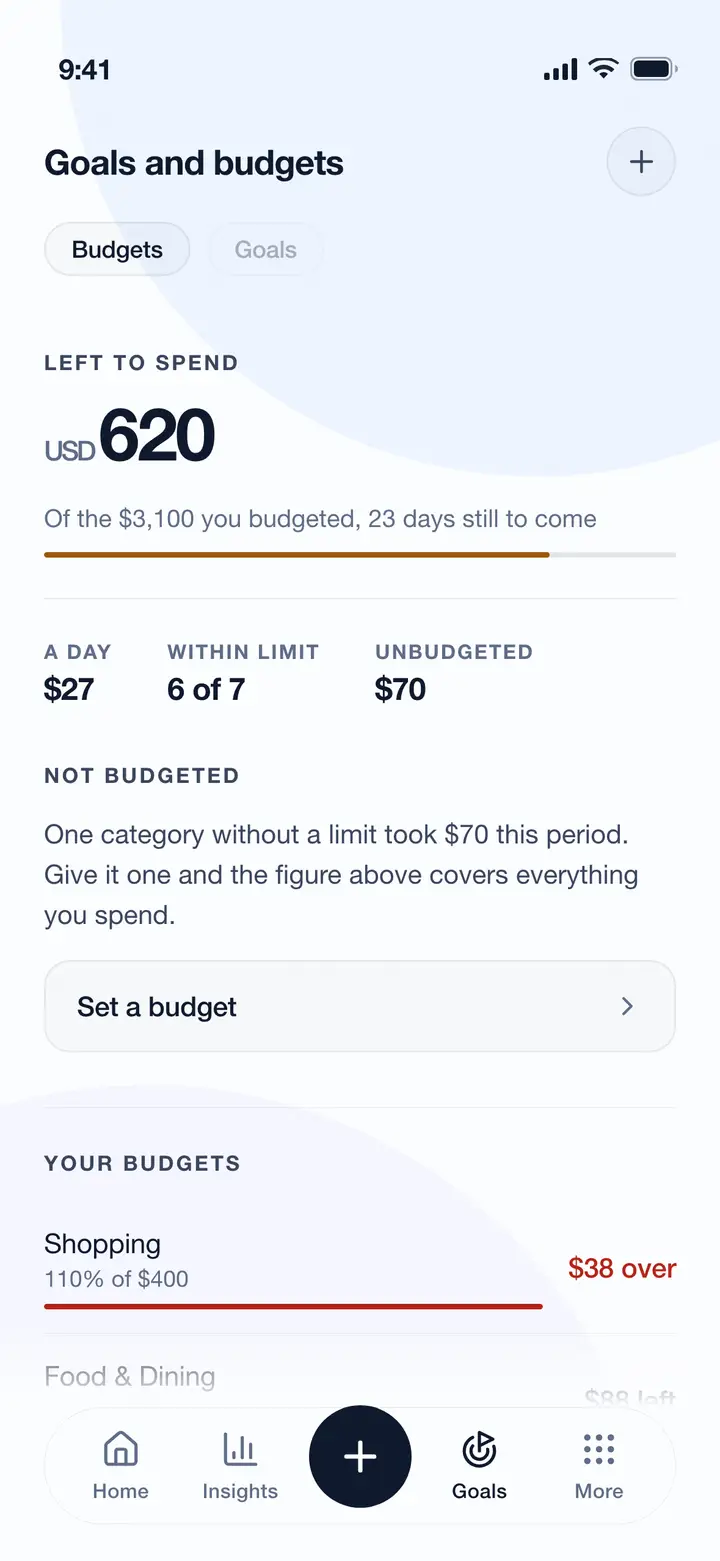
Track spending limits and save for what matters most.
Step by step
1Go to the Goals tab (accessible from the bottom navigation)
2Switch between Budgets and Goals tabs at the top
3Budgets tab: tap "+" to create a monthly budget for a category
4Goals tab: tap "+" to create a savings goal with name, target, and deadline
5Choose a goal type (Emergency Fund, Vacation, Investment, etc.)
6Add contributions manually or link transactions to a goal
7Monitor progress with circular visual indicators
8Celebrate when you reach your target!
Worth knowing
Set realistic goals based on your income
Break large goals into smaller milestones
Contribute consistently, even small amounts add up
Link goals to specific accounts for accountability
Budgets and Goals are combined in one tab for easy management
Budgets and goals
Plans and progress
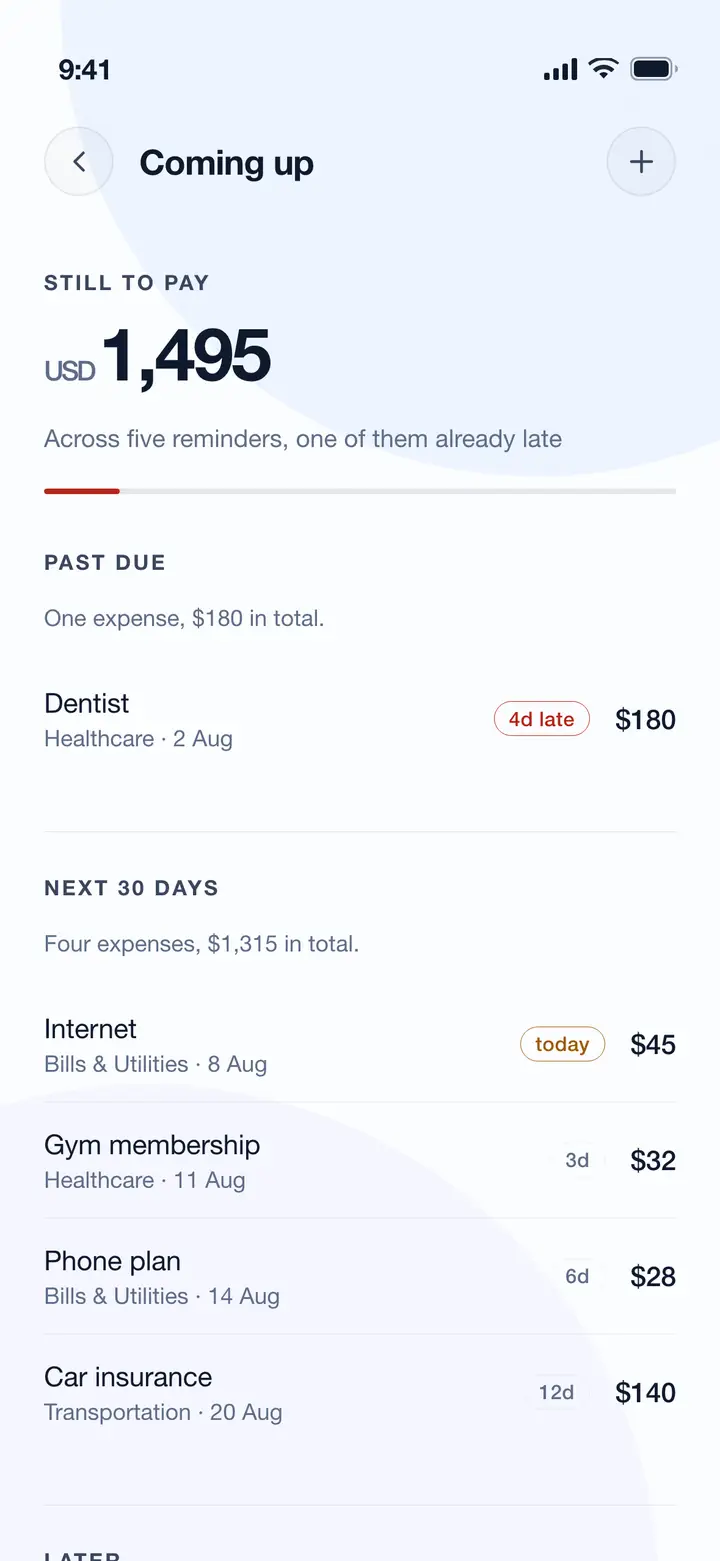
Upcoming expenses
Never miss a bill or payment with upcoming expense tracking. This one is Premium.
Step by step
1Tap "Upcoming Expenses" from Home or More tab
2Add new expense with name and amount
3Set due date and category
4Enable recurring for regular bills (daily/weekly/monthly/yearly)
5Get automatic reminders before due dates
6Mark as completed to record as a transaction
Worth knowing
Add all recurring bills (rent, utilities, subscriptions)
Marking complete automatically creates the transaction
Recurring expenses auto-schedule the next occurrence
Review upcoming expenses weekly to plan cash flow
Upcoming expenses
Plans and progress
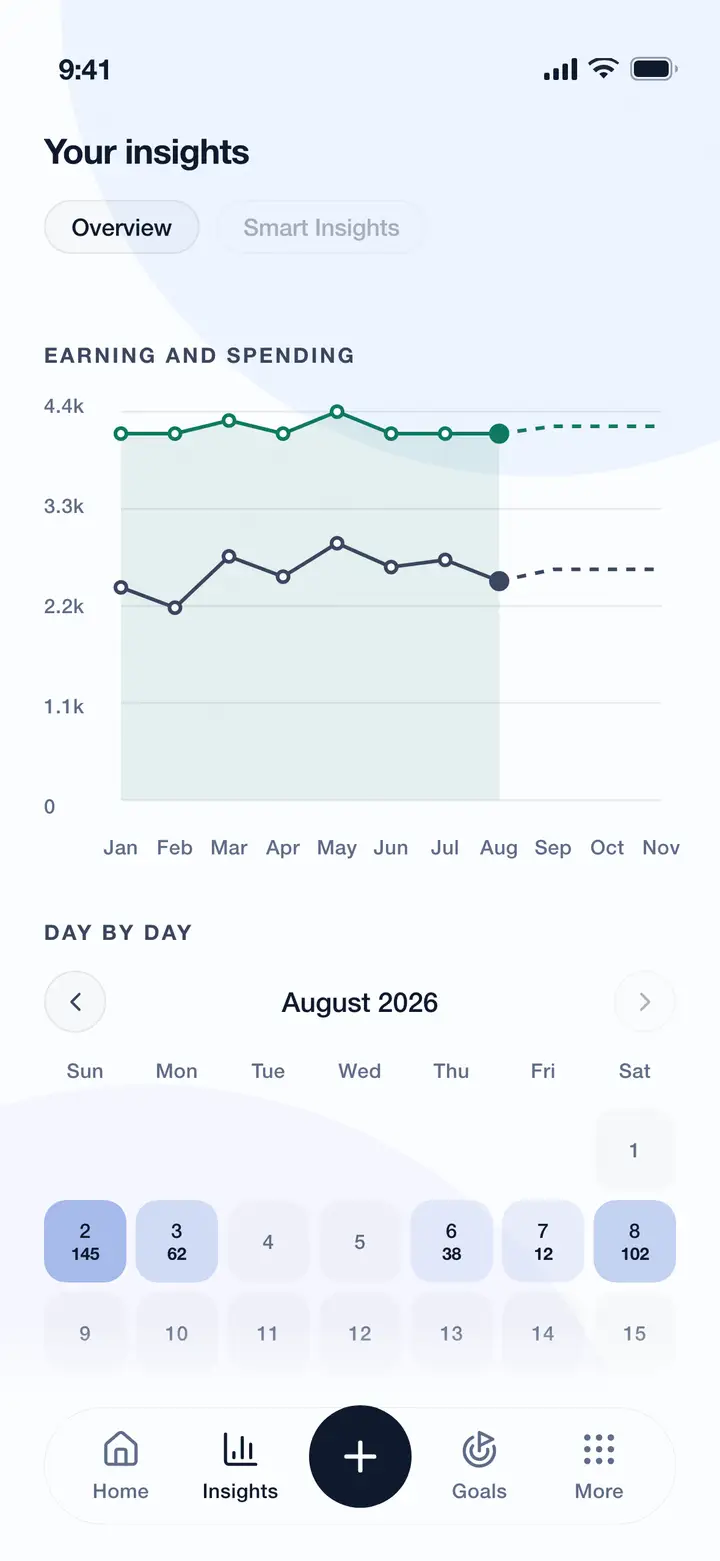
Insights and analytics
Understand your spending patterns with powerful analytics.
Where to look
Visit the Insights tab for visual reports
Overview tab: Income vs Expenses area chart, Spending Heatmap, Category Breakdown
Tap on heatmap days to see transactions for that day
Navigate between months using the arrow buttons
Smart Insights tab (Premium): financial health score from your own numbers